
IntelliJ Proxy Settings: Complete Configuration Guide
Java, Kotlin, and Scala developers, together with DevOps engineers who use IntelliJ IDEA, work in network-dependent environments. They regularly handle secure access to remote repositories, library downloads, API services, CI/CD pipelines, and distributed-system testing. Corporate networks often restrict access to external resources through security policies and traffic filters. You can bypass these constraints with IntelliJ proxy settings and keep access to required services stable and controlled.
This guide explains the key ways to run the IDE through a proxy server. It also details common connection mistakes and shows practical fixes for them.
Why Use Proxies With IntelliJ IDEA?
Built-in proxy settings in IntelliJ IDEA helps handle a broad range of network-related tasks. These tasks fall into two groups: functional workflow tasks and infrastructure-level security and governance tasks.
Functional tasks:
-
Proxy-aware access to remote artifact and library repositories stabilizes connections to external package sources. Typical endpoints include Maven Central, Gradle Plugin Portal, JFrog Artifactory, Nexus Repository, NPM Registry, and similar platforms.
-
Plugin download and updates continue to work through JetBrains Marketplace even when network access is heavily restricted.
-
CI/CD integration depends on reliable data exchange between the IDE and build or deployment systems. IntelliJ proxy settings ensure consistency when IntelliJ IDEA talks to Jenkins, TeamCity, GitLab, and other automation platforms.
-
Work with APIs and external services benefits from an intermediary that keeps REST, GraphQL, gRPC, and similar interfaces reachable.
-
Network-condition emulation lets you test applications under different geographic and connectivity scenarios. For example, configure a proxy in LDPlayer and script mobile tests that simulate access from another country.
Infrastructure tasks:
-
Security: traffic filtering, encryption, and control shield the development environment from unauthorized connections.
-
Caching and acceleration reduce data-load times and offload traffic from external network links.
-
Monitoring and audit of network calls rely on request logging for analysis and internal compliance checks.
-
Error reduction means fewer build and deployment failures triggered by network interruptions. Proper IntelliJ proxy settings help avoid outages when remote repositories become unreachable during CI/CD processes.
-
Manageability and scalability come from applying consistent policies across projects and development environments. A central intermediary configuration integrates with DevOps pipelines and supports flexible, geography-based IP allocation.
Together, these capabilities make intermediary infrastructure an essential part of the corporate development environment.
How To Set A Proxy In IntelliJ?
JetBrains IDEs support HTTP(S) and SOCKS5 protocols both with and without authentication, which lets teams align the IDE with diverse corporate network requirements.
You can set proxy in IntelliJ in several ways:
-
Open the settings window with Ctrl + Alt + S and work from there.
-
Use the search box on the main toolbar and enter “Proxy” or “HTTP Proxy”.
-
Navigate through the IDE menus and open the relevant configuration section directly.
This guide uses the last option because it is the clearest and most universal workflow. The examples rely on IntelliJ IDEA version 2025.2.4.
-
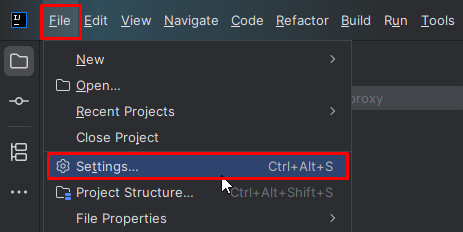
After you open the IDE and create a project, head to “File” → “Settings” on Windows and Linux, or “IntelliJ IDEA” → “Preferences” on macOS.
-
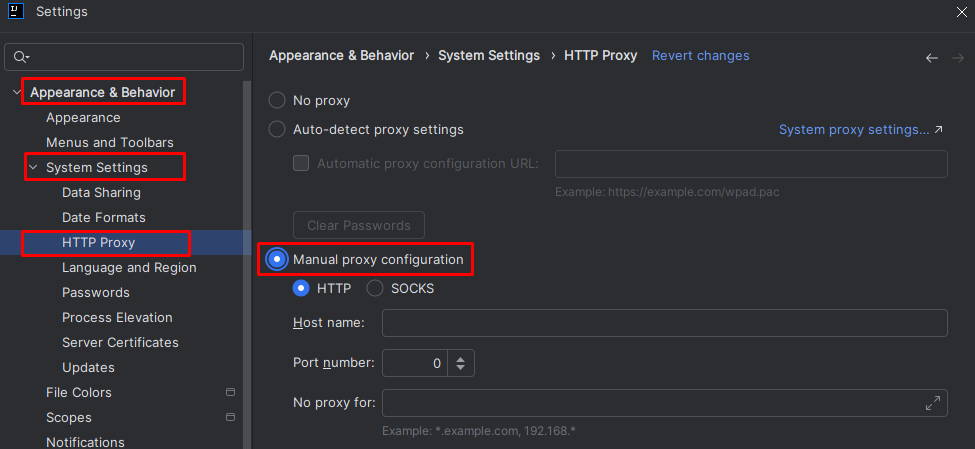
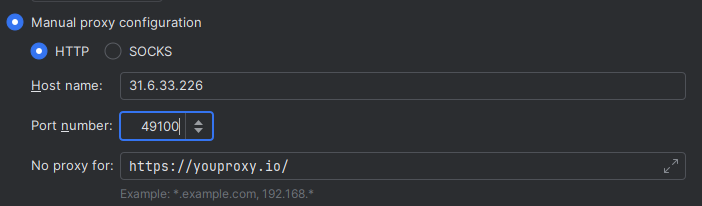
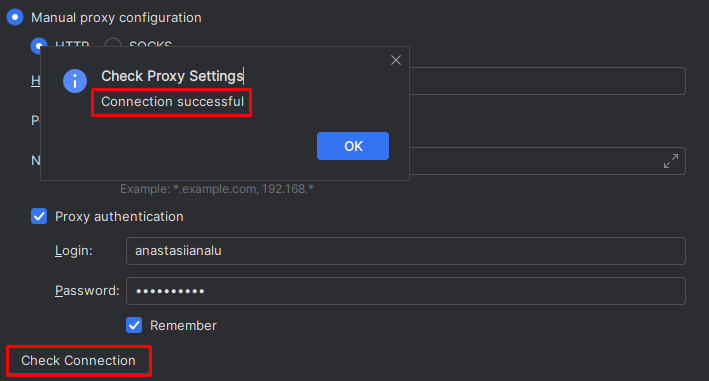
In the IntelliJ proxy settings window, switch to “Appearance & Behavior” → “System Settings” → “HTTP Proxy” and enable “Manual proxy configuration”. Once enabled, the fields become editable, and you can enter the protocol, host name, and port number.
-
If needed, you can configure exceptions for domains that must bypass the intermediary and connect directly.
-
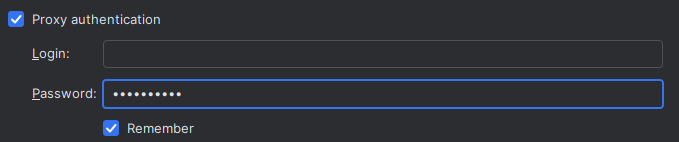
To enable a secure connection, select “Proxy authentication”, provide the username and password, and tick “Remember” to store the credentials for future sessions.
-
To verify the IntelliJ proxy configuration, enter any URL and click “Check connection”. If the setup is correct, the IDE displays a successful connection message.
IntelliJ Proxy Settings For Individual Tools
You can configure a proxy in IntelliJ for the entire IDE or only for specific tools. This flexibility ensures correct behaviour in corporate environments where different components follow their own routes and security policies.
Version Control Systems
IntelliJ IDEA includes a built-in Git client, so you configure the intermediary with standard Git commands rather than IDE-specific options.
Global configuration applies to all repositories:
git config --global http.proxy http://user:password@host:port
git config --global https.proxy http://user:password@host:port
If you need different network parameters for a single project, switch to its root directory and run the same commands with the --local flag:
git config --local http.proxy http://user:password@host:port
git config --local https.proxy http://user:password@host:port
Here:
-
user – the username; you can omit it if the proxy does not require authentication.
-
password – the password, when the proxy enforces authentication.
-
host – the proxy server address.
-
port – the listening port of the proxy server.
You can check current settings with a targeted lookup:

To deactivate the proxy configuration, reset the parameters:
git config --global --unset http.proxy
git config --global --unset https.proxy
Intellij Proxy Settings: Package Managers
You can add a proxy in IntelliJ separately for package managers such as NPM, Yarn, and others that download library updates and project dependencies.
Example NPM configuration:
npm config set proxy http://host:port
npm config set https-proxy http://host:port
Yarn configuration:
yarn config set proxy http://host:port
yarn config set https-proxy http://host:port
After these commands, the package manager routes all dependency downloads through the specified gateway.
Integration for Maven Projects
In many corporate environments, Maven remains the primary build tool for Java projects and fetches dependencies from external repositories. When network access is restricted or passes through a corporate firewall, Maven connects via an intermediate server.
You configure the new IP in the settings.xml file.
Important: Maven uses two configuration scopes:
-
System-level configuration resides in the Maven installation that ships with IntelliJ IDEA: C:\Program Files\JetBrains\IntelliJ IDEA <version>\plugins\maven\lib\maven3\conf\settings.xml. Modifying this file is risky, because IDE updates can overwrite it without warning.
-
User-level configuration lives in the user Maven profile directory and takes precedence over system settings. This user settings.xml is the recommended place for proxy configuration. The path is C:\Users\<user>\.m2\settings.xml.
Step-by-step:
-
Open or create settings.xml with Notepad or another text editor.
-
Add a proxy configuration block with the required connection parameters:
<settings>
  <proxies>
    <proxy>
      <id>corporate-proxy</id>
      <active>true</active>
      <protocol>http</protocol>
      <host>proxy.domain</host>
      <port>49115</port>
      <username>user_name</username>
      <password>password</password>
      <nonProxyHosts>localhost|127.0.0.1</nonProxyHosts>
    </proxy>
  </proxies>
</settings>
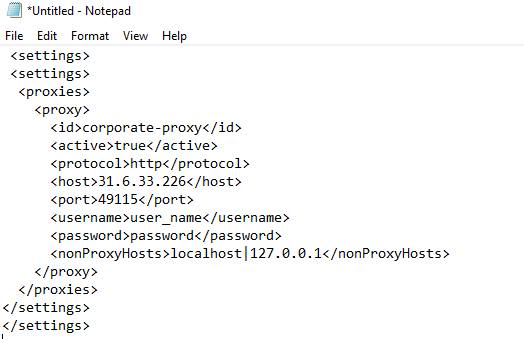
After you save the file and restart the machine, Maven uses the specified host and port for all network access and dependency downloads.
Adding a Gateway for Gradle projects
Gradle is widely used to build Java, Kotlin, and Android projects. Like Maven, it relies on external repositories to download additional components.
IntelliJ proxy settings for Gradle go through the gradle.properties configuration file, located here:
-
Windows: C:\Users\<user>\.gradle\gradle.properties
-
Linux / macOS: /home/<user>/.gradle/gradle.properties
Or in the project root as <project>/gradle.properties if the proxy should apply only to that build.
If the file does not exist, create it manually and add the following properties:
systemProp.http.proxyHost=proxy.domain
systemProp.http.proxyPort=49155
systemProp.https.proxyHost=proxy.domain
systemProp.https.proxyPort=49155
If the proxy server requires authentication, extend the configuration:
systemProp.http.proxyUser=user_name
systemProp.http.proxyPassword=password
systemProp.https.proxyUser=user_name
systemProp.https.proxyPassword=password
To bypass specific addresses, define non-proxy hosts:systemProp.http.nonProxyHosts=localhost|127.0.0.1|*.company.local
After you restart the machine, Gradle adopts these parameters for all outbound connections.
IntelliJ Proxy Settings: Troubleshooting Issues
Network errors in the IDE can come from incorrect intermediary values, conflicts between system and IDE settings, authentication problems, or broken SSL chains. Resolving them requires stepwise diagnostics and targeted checks of key configuration elements.
Log Analysis
IntelliJ logs all events, which makes it easier to pinpoint the root cause. The logs live in a dedicated directory accessible from the IDE and the file system.
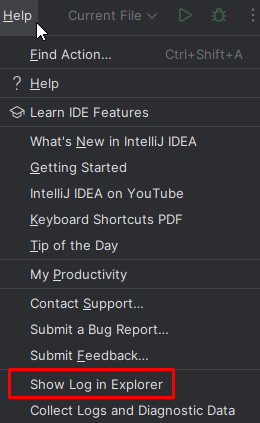
Via the IDE interface, open “Help” → “Show Log in Explorer” (or the equivalent item on macOS and Linux).
Through the file manager, use the paths below:
-
Windows: C:\Users\<user>\AppData\Local\JetBrains\IntelliJIdea<version>\log\
-
Linux: ~/.cache/JetBrains/IntelliJIdea<version>/log/
-
macOS: ~/Library/Logs/JetBrains/IntelliJIdea<version>
The main diagnostics file is idea.log, which records all system events including network errors and failed connections.

For troubleshooting, search inside idea.log using relevant keywords. The table below helps map specific messages to their likely causes and suggested checks.
|
Message |
Cause |
What to Check / Action |
|
Proxy |
Incorrect parameters or a conflict with system settings |
Verify the IP address, port, and type; disable “Auto-detect proxy settings.” |
|
IOException, SocketTimeoutException |
Server response timed out |
Check server availability and network connectivity; increase timeouts. |
|
Authentication, Proxy authentication failed |
Authentication error |
Verify the username and password; confirm the authentication method (Basic, NTLM, Kerberos). |
|
SSLHandshakeException, PKIX |
Untrusted or missing certificate |
Add the corporate certificate to the JDK truststore and your development environment. |
|
UnknownHostException |
Incorrect server address or missing DNS resolution |
Verify the hostname and DNS configuration. |
|
Connection refused |
Server is unavailable |
Confirm the new IP is running by connecting from another device or application. |
|
Timeout while waiting for connection |
Network congestion or proxy not responding |
Check the server load; if needed, temporarily switch to a direct connection. |
Besides idea.log, review the following files when you debug network issues:
-
build-log.log – errors during builds or Gradle/Maven sync.
-
plugin-update.log – problems while downloading or updating plugins.
-
threadDumps-freeze-<date>.txt – snapshots for cases when the IDE hangs during network operations.
-
network.log (when detailed logging is enabled) – fine-grained network interaction traces.
If the logs do not reveal a clear root cause, the next step is to recheck all connection parameters. Validate the protocol type, host address, port, and authentication credentials used by the IDE.
Conflicts Between System And IDE Proxy Settings
When the operating system or environment variables define intermediary parameters, the IDE can automatically inherit these values. If the values do not match, these configurations collide and cause connection errors. For verification, follow these steps:
-
Temporarily disable system-wide parameters and confirm that the IDE does not enforce them.
-
Enable the Manual configuration mode in the IDE.
-
On macOS, inspect the Network → Proxies section and remove duplicate or invalid entries.
SSL and Certificate Issues
Typical messages include “PKIX path building failed” and “ValidatorException: PKIX path validation failed”. You may also see “SSLHandshakeException: unable to verify the first certificate” and related errors.
This situation arises when an intermediate gateway performs SSL inspection. It can also use a custom certificate that the Java trust store does not include. In these cases, both the IDE and its components cannot establish a secure connection.
To resolve the issue, you must add the corporate certificate to the Java and IntelliJ trust stores. For this, perform the following steps:
-
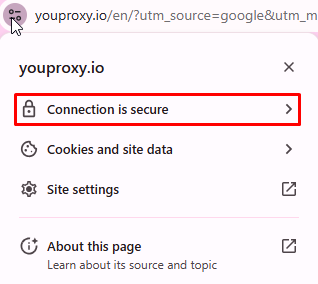
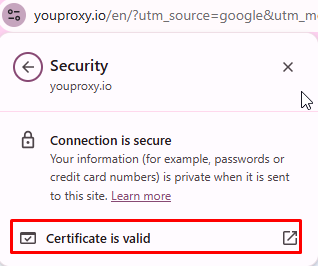
Open the required resource in a browser, for example Artifactory, Nexus, or any HTTPS endpoint routed through the proxy. Click the security icon near the address bar and select the item that shows the secure connection details.
-
In the next dialog, open the “Certificate is valid” section.
-
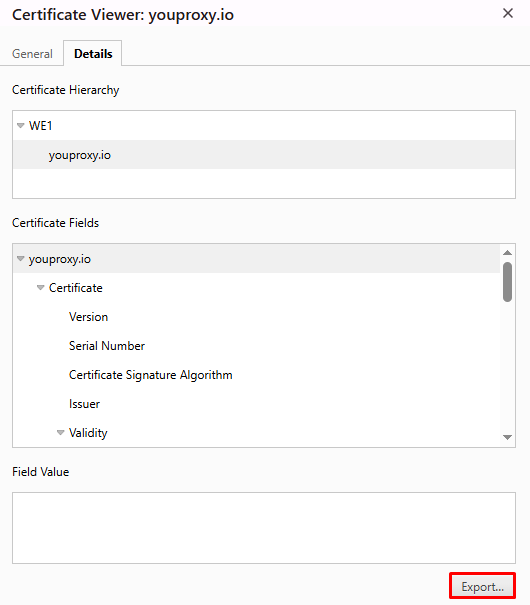
In the certificate viewer, select the required certificate and export it as a .cer or .crt file.
-
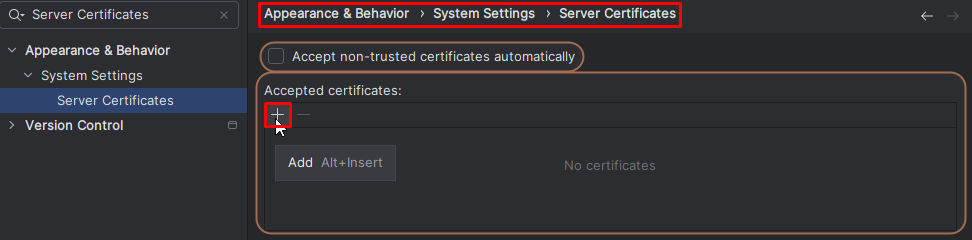
After the export, open IntelliJ IDEA and navigate to “File → Appearance & Behavior → System Settings → Server Certificates”. Click Add and choose the previously exported certificate file.
Adding the certificate only inside the IDE does not fully resolve the problem. You also need to import it into the Java runtime.
For this, perform the following additional steps:
-
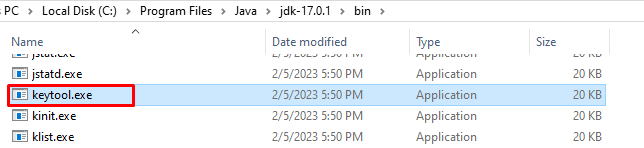
On Windows, navigate to C:\Program Files\Java\jdk-<version>\bin. On macOS, open /Library/Java/JavaVirtualMachines/jdk-<version>/Contents/Home/bin.
-
Locate and run the keytool.exe utility or the keytool binary.
-
In that directory, or in an elevated command prompt, run the following import command:
keytool -importcert -trustcacerts \
 -keystore "C:\Program Files\JetBrains\IntelliJ IDEA <версия>\jbr\lib\security\cacerts" \
 -storepass changeit \
 -alias "certificate-name" \
 -file "C:\certs\certificate-name.cer"
The first path defines the target trust store, while the -file option specifies the certificate location.
After you restart the machine and relaunch the IDE, SSL communication with the corporate proxy should succeed.
Resolving Proxy Issues With Gradle Requests
Gradle can run a build in debug mode and produce a detailed log of network operations. That log helps identify the point of failure.
For a system-wide Gradle installation, use the following command:
gradle build --debugIf the project uses Gradle Wrapper, invoke the build with this command:
./gradlew build --debugThe console shows a detailed event trace that reveals how Gradle interacts with the proxy server. The most useful messages include:
|
Message |
Meaning |
|
Using proxy host |
Requests are being routed through the configured intermediary host |
|
Received status code 407 |
Authentication error: incorrect or missing credentials |
|
Connection timed out / Could not GET resource |
Connection interrupted or blocked by the intermediary or repository |
|
javax.net.ssl.SSLHandshakeException |
SSL certificate issue: TLS interception by corporate IP or untrusted certificate |
If the line “Using proxy host” does not appear, Gradle ignored the configuration from gradle.properties. In this case, check path correctness, file syntax, and the presence of systemProp.http.proxyHost and systemProp.http.proxyPort entries.
Maven Diagnostics
As with Gradle, you can troubleshoot Maven network issues in debug mode with extended logging.
To obtain the event log, add the -X flag:
mvn clean install -XMaven then prints a full debug trace with network requests, connection parameters, and interactions with remote servers.
Key messages that indicate problems include:
|
Message |
Meaning |
|
Using connector BasicRepositoryConnector with proxy |
Maven is connecting via the corporate gateway |
|
Authentication Required (407) |
Authentication missing or credentials are invalid |
|
Non-resolvable parent POM / Could not resolve artifact |
Repository not reachable – blocked by intermediary or network timeouts |
|
Connection timed out |
No response from the server or repository |
|
PKIX path building failed / unable to find valid certification path |
SSL certificate problems |
|
Received fatal alert: handshake_failure |
SSL configuration mismatch or HTTPS inspection by the proxy |
Careful analysis of these key messages helps quickly isolate the failing component and choose an appropriate remediation.
IntelliJ Proxy Settings: Final Thoughts
A corporate proxy is a core element of the development infrastructure: it provides controlled access to external resources, speeds up artifact delivery, supports security requirements, and helps reproduce specific network conditions.
You can configure IntelliJ proxy settings globally or for individual tools—Git, Maven, Gradle, package managers, and the built-in HTTP client. This flexibility simplifies work in corporate networks and improves the stability of build and delivery pipelines. At the same time, incorrect configuration can lead to connectivity errors, authentication failures, or SSL issues. In most cases, you can identify the cause using logs and debug modes in Maven and Gradle, and by reviewing connection parameters and Java trust store contents.
A properly configured intermediate gateway eliminates many of these problems, and this guide brings together the practical steps needed to set it up and maintain it.
FAQ
Does IntelliJ IDEA fully support operation over SOCKS5 proxies?
The IDE supports SOCKS5 IPs for its own network operations, including plugin downloads, the built-in HTTP client, and Marketplace access. However, tools such as Git, Maven, Gradle, and package managers use separate networking stacks. They usually require manual configuration or HTTP/HTTPS ones that align better with corporate infrastructure.
Can I configure IntelliJ proxy settings using PAC files?
You can use a PAC file with IntelliJ only when the operating system defines the intermediary settings. In that case, enable Auto-detect settings inside the IDE. Even with this setup, complex PAC rules may behave unpredictably.
Tools that IntelliJ launches as separate processes, such as Git, Maven, Gradle, npm, or pip, do not understand PAC files. You must configure new IPs for these tools manually.
Do IntelliJ proxy settings affect plugin updates and Marketplace access?
If intermediary parameters are incorrect or authentication is required but not provided, Marketplace access may fail. Plugins may then fail to install or update successfully.
Can I use IntelliJ IDEA in a remote environment?
IntelliJ IDEA can run in a remote desktop session over RDP. In such setups, pay attention to the network configuration of that remote session. To keep the IDE connected to external services, configure a proxy in the RDP environment. You must also define intermediary gateway parameters directly in IntelliJ IDEA.


