
How to Use MoreLogin Proxy for Secure and Efficient Browsing
MoreLogin is an anti-detection browser built for users who need to manage multiple accounts without linking identities. It works by creating profiles, each with its own cookies, session data, operating system parameters, and behavioral signals. To make this separation effective, a MoreLogin proxy is recommended. When multiple workspaces operate from the same address, they can still be correlated and flagged despite the correct settings.
Assigning a dedicated IP to each workspace aligns each identity with browser-level data, helping users avoid detection and significantly reduce ban risks. This setup is especially important for e-commerce, traffic arbitrage, SMM, and web scraping workflows.
This guide explains how to set up a profile in MoreLogin, add proxy servers, and create isolated, reliable connections so each account behaves like a separate real user online. Get step-by-step instructions for both single and bulk setups and discover configuration best practices that reduce the chance of blocks or restrictions.
How MoreLogin Uses Proxies for Anti-Detection
When a profile is launched, all traffic is routed through the proxy’s IP address. This keeps the browser fingerprint, location, and network data consistent, which helps prevent account linking.
Key points:
-
One IP is assigned per workspace.
-
Separation of cookies and sessions
-
Authentication support.
-
Built-in proxy connection testing before launch.
Types of Proxies Used with MoreLogin
The browser supports the following options:
-
Datacenter proxies - fast and low-cost, suitable for testing and some web scraping, but more prone to detection.
-
Residential IPs that originate from real ISPs, making them the optimal choice for e-commerce, SMM, traffic arbitrage, and long-term account use.
-
Mobile proxies - provide high trust, but are more expensive and harder to control.
Using an IP that matches the task and platform helps keep profile behavior consistent and reduces ban risks. A full explanation is available in this guide on the types of proxies.
Understanding the differences ensures stable MoreLogin proxy integration before moving on to the configuration and setup.
How to Use MoreLogin Proxy: Single Profile Setup
This approach is best for beginners or users handling a small number of accounts. It lets them connect one dedicated IP to a single workspace, which provides strong isolation and reduces the risk of detection.
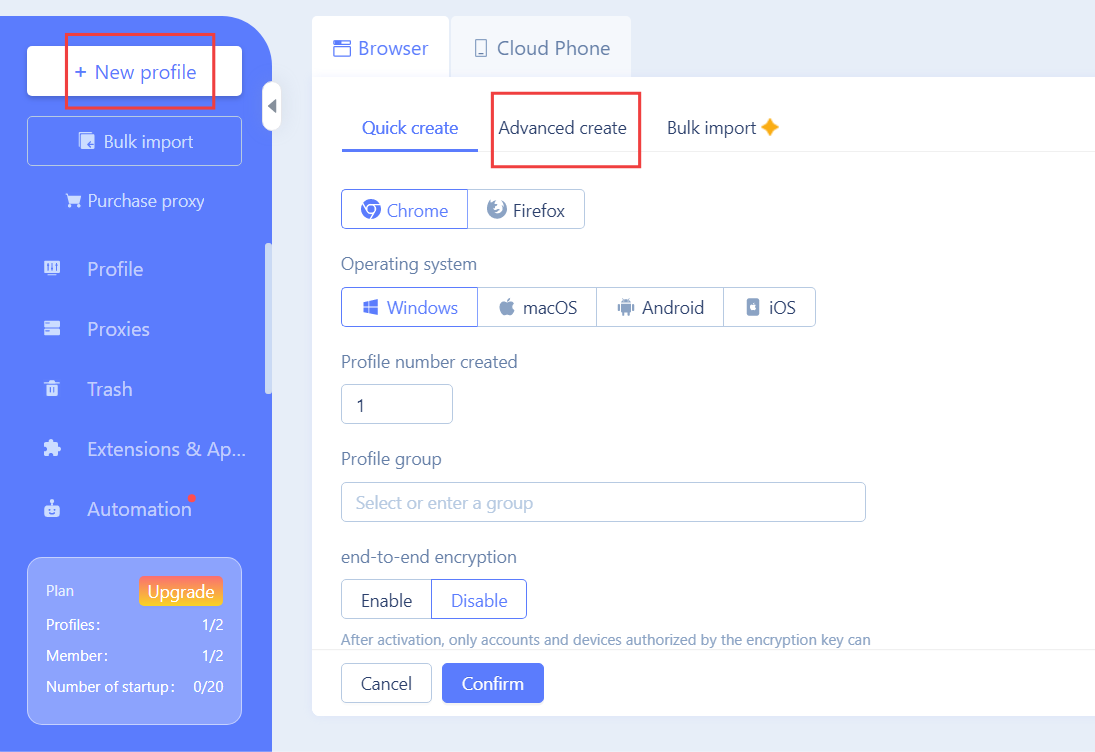
Step 1: Create a New Browser Profile
Open the dashboard and set up a new profile using the Advanced create tab. Choose the appropriate operating system and keep system parameters aligned with your target platform.
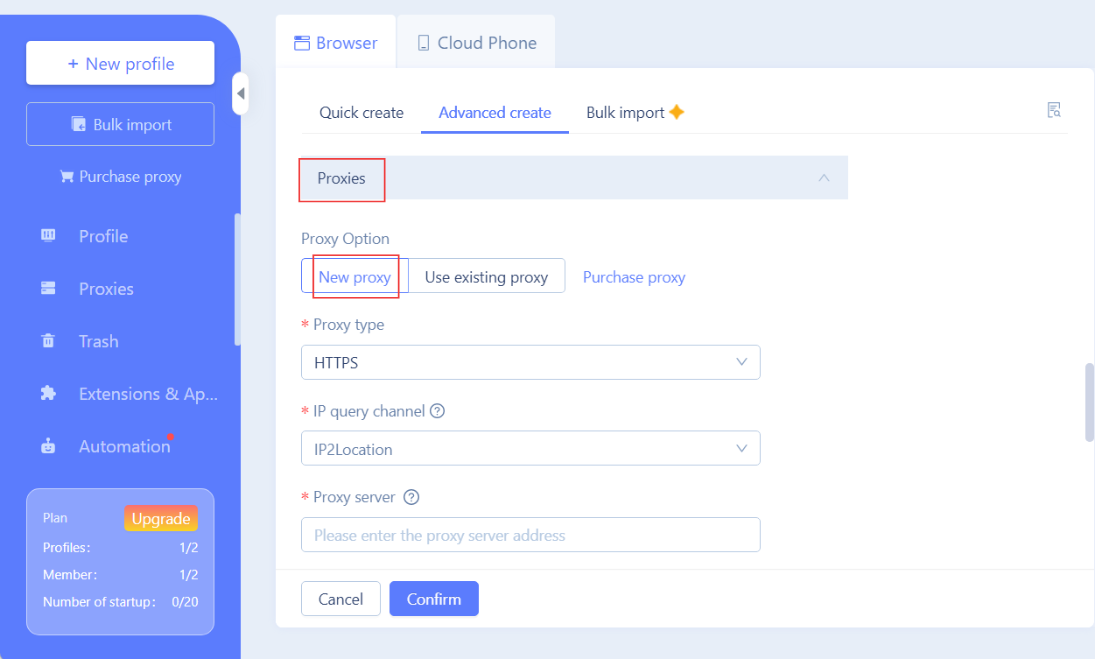
Step 2: Open Proxy Configuration
Inside the workspace settings, locate the New proxy tab.
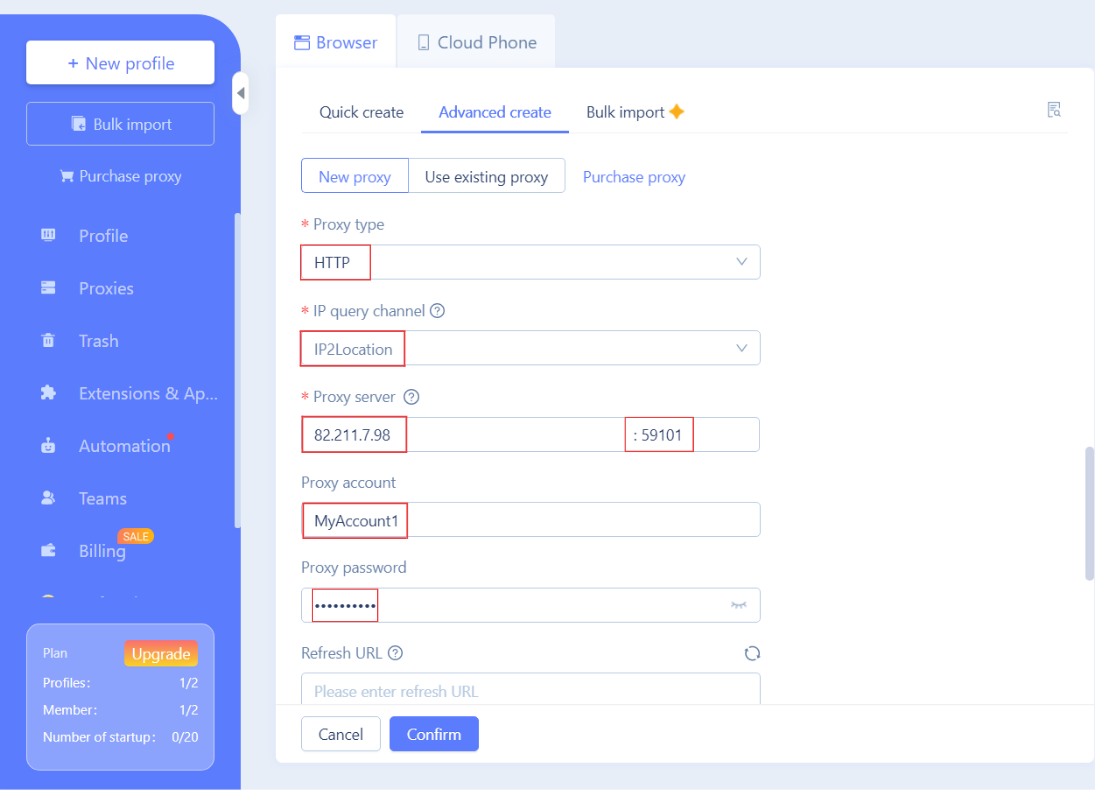
Step 3: Enter Connection Details
Provide the required proxy information:
-
IP address;
-
Proxy port;
-
Proxy username and password (if authentication is required).
These values define how traffic is routed during the session.
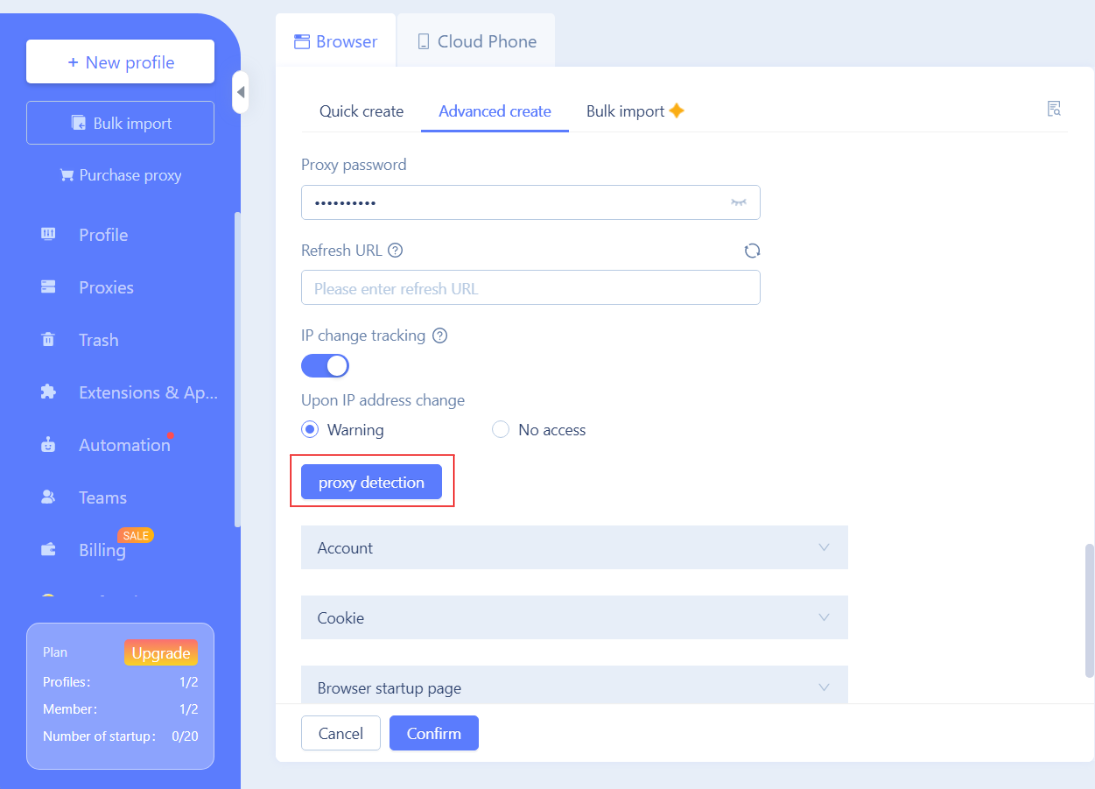
Step 4: Test
Press the detection button to run the built-in test and confirm stability.
Step 5: Save
Once verified, confirm the settings and launch the environment.
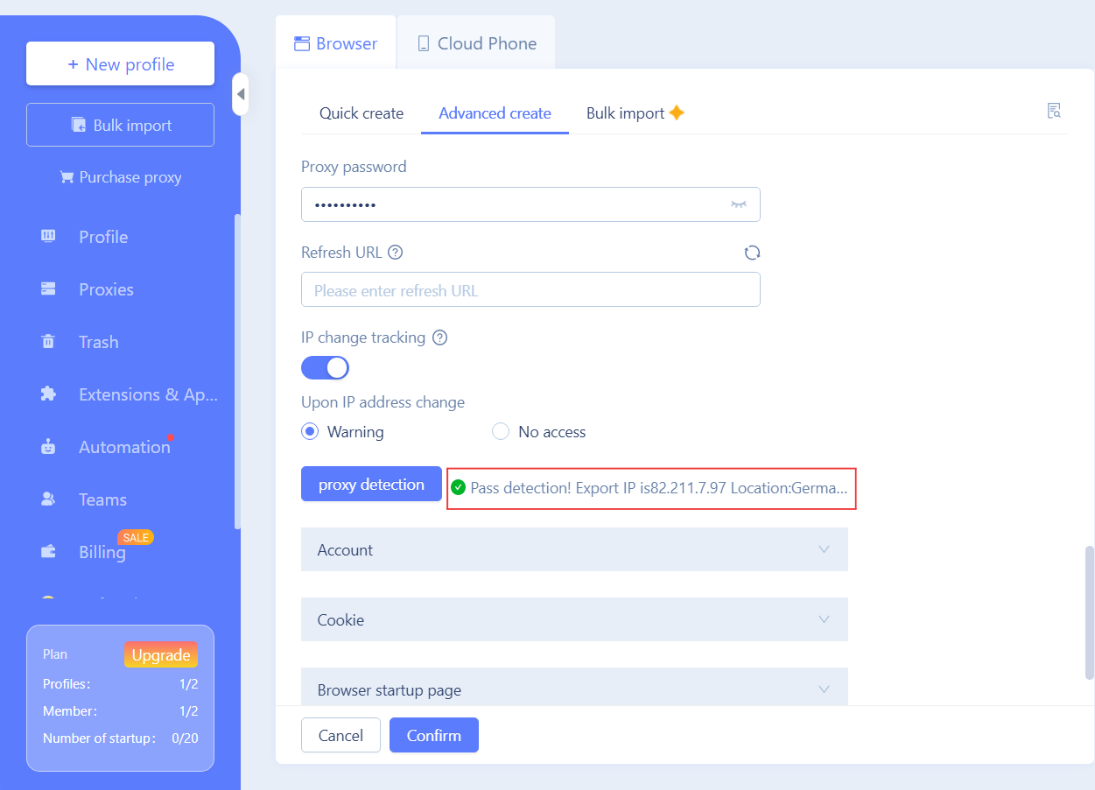
After setup, all activity is routed through the assigned IP, keeping network behavior consistent and reducing exposure.
How to Add a MoreLogin Proxy to an Existing Profile
MoreLogin supports updating network settings for an existing setup without creating a new one. This allows the connection to be replaced while preserving stored browser data and session state.
-
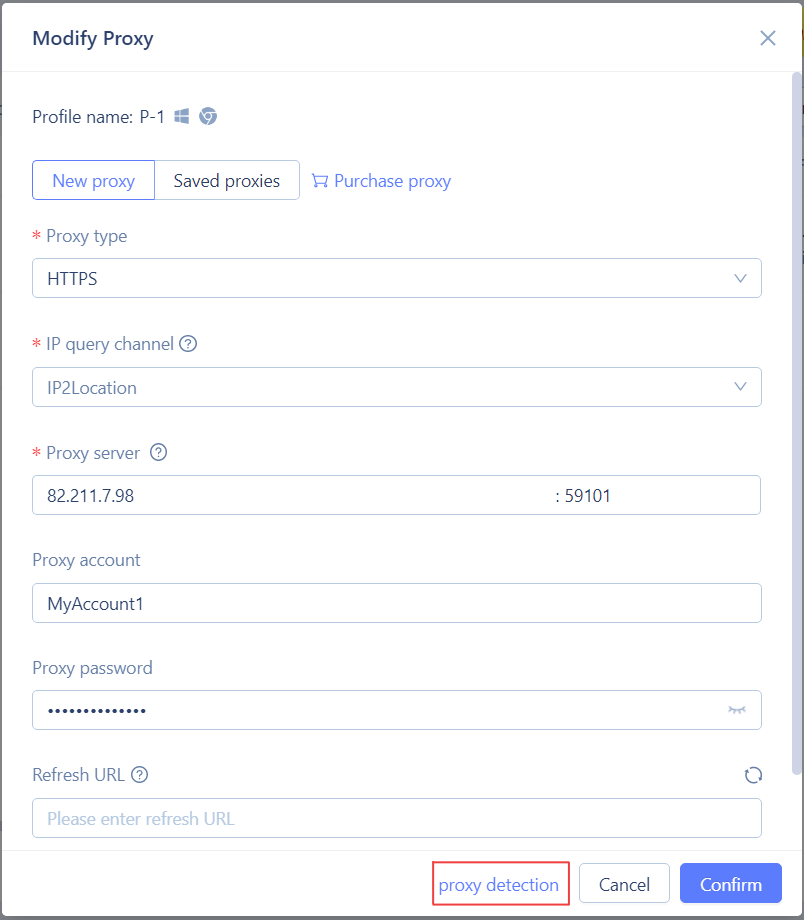
From the dashboard, select the required profile and open its settings.
-
In the proxy option section, enter the new IP address, port, and authentication details if applicable.
-
After saving the changes, run the built-in test to confirm stability, confirm, and then relaunch the environment.
All existing data remains unchanged, enabling IP updates without disrupting the profile session or configuration.
Mass Setup of Proxies for MoreLogin
The browser allows users to import and assign proxies in batches instead of adding them one by one. This approach is suited for teams handling large numbers of accounts and requiring fast, structured configuration.
-
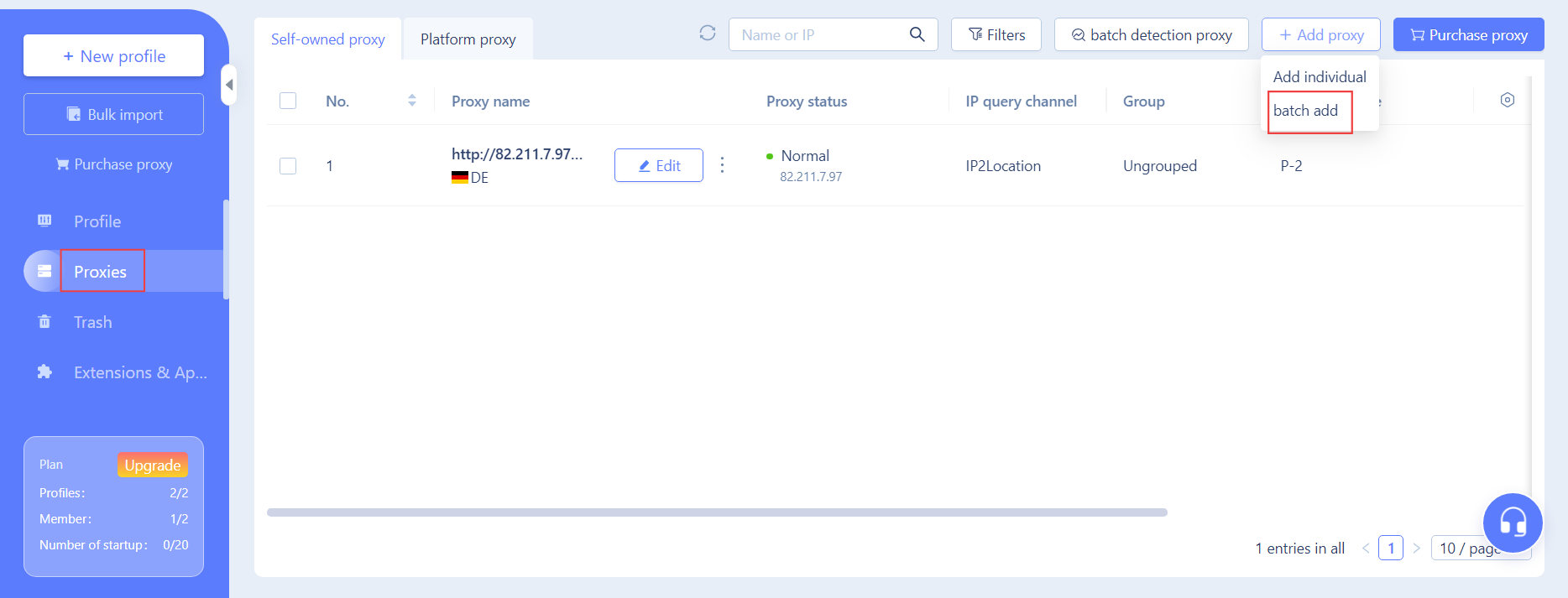
In the dashboard, go to Proxies ➝ Add Proxies ➝ Batch Add.
-
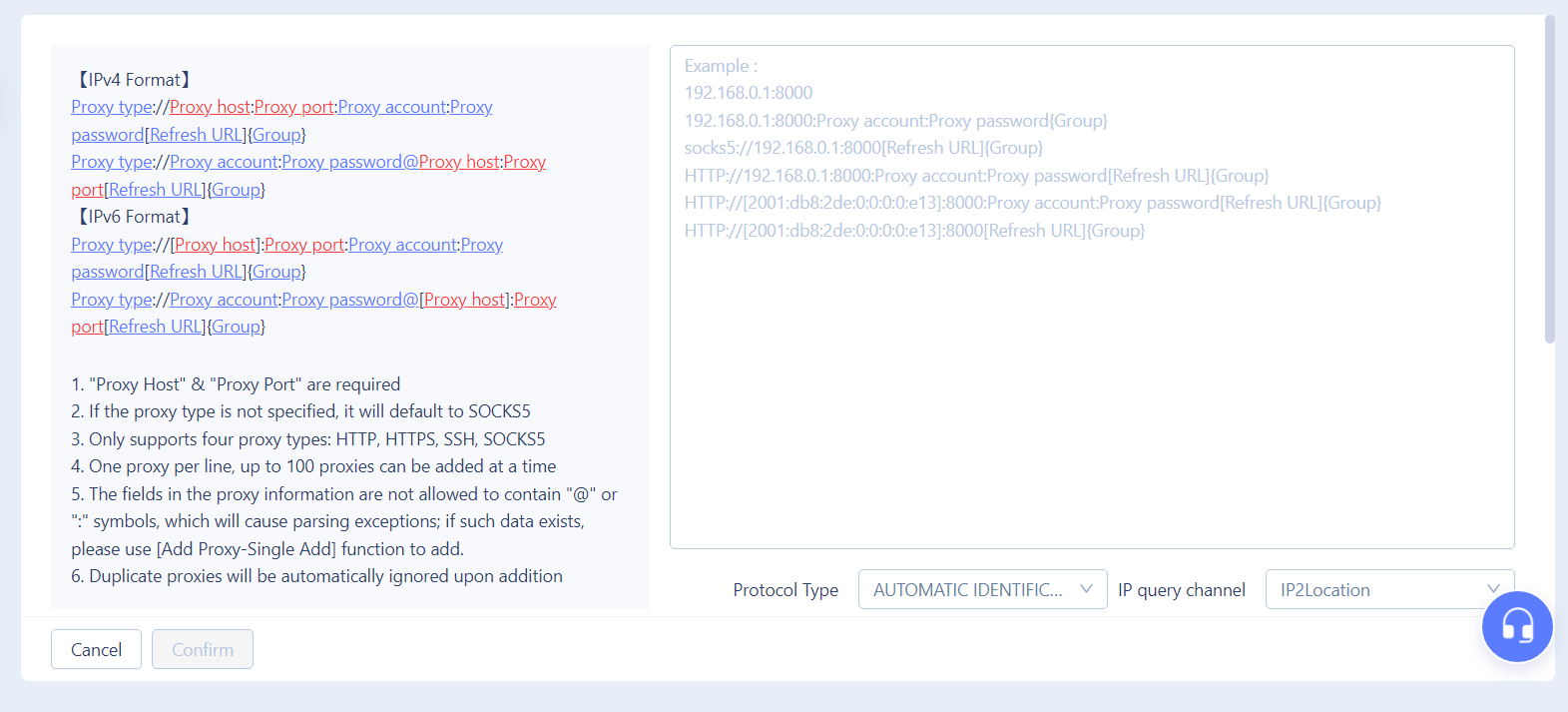
Upload a list containing the IP address, port, username, and password. These entries can then be automatically linked across multiple environments in a single action.
Key benefits of bulk setup:
-
Faster deployment at scale.
-
Unique IP per environment to avoid reuse.
-
Centralized management of proxies.
MoreLogin Proxies: Detection Issues and How to Avoid Them
Even with a correctly configured MoreLogin proxy, accounts may still be flagged if common mistakes occur due to inconsistencies in network behavior or poor connection quality.
-
Mismatch between IP and fingerprint
If the address does not align with location, timezone, or operating system parameters, platforms may detect abnormal behavior.
-
Reusing the same connection across environments
Using a single IP for multiple setups links activity at the network level. To safely manage multiple browser profiles, assign a unique endpoint to each setup.
-
Poor quality addresses
Shared, overused, or blacklisted IPs increase detection risk. These often cause authentication errors, unstable routing, or appear in known abuse databases.
Tips to avoid detection long-term:
-
Use high-quality residential proxies with a clean usage history.
-
Monitor status indicators and event logs regularly.
-
Replace IPs that show repeated errors or blocks.
Following these practices helps maintain a more stable MoreLogin proxy integration and reduces long-term detection risks as workflows scale.
Final Recommendations
Reliable multi-account work in MoreLogin depends on more than initial setup - it requires continuous control. Assigning a unique IP to each environment and aligning it with system parameters establishes a stable foundation, but long-term success comes from ongoing monitoring.
Built-in indicators such as connection status, external IP and location, test results, and the event log make it possible to verify that routing remains stable and errors are detected early. Regularly checking this data helps prevent silent failures that often lead to blocks or account restrictions.
Combined with structured IP assignment and timely replacement of unstable addresses, these practices allow workflows to scale without losing control. When network behavior is actively monitored rather than assumed, MoreLogin becomes a sustainable tool for e-commerce, traffic arbitrage, SMM, and data-driven operations.
The same approach can also support stable access to gaming platforms, such as Roblox, where strict session controls are applied, and network routing may be handled at either the browser or platform level. For a practical example, check this guide on how to set up a Roblox proxy.
For workflows involving anti-detection browsers, gaming platforms, or multi-account operations, consider high-quality proxies with clean IP history available on our site.
Frequently Asked Questions
Can I change connection settings without setting up a new profile?
Yes. It allows users to update the address settings of an existing environment. Cookies, sessions, and browser data remain intact, making it safe to replace an IP when needed.
What happens if a MoreLogin proxy stops working while a session is active?
Traffic may fail or trigger errors. In this case, stop the session, replace the IP, test the new one, and relaunch the environment to avoid instability or platform flags.
How often should connection parameters be replaced for long-term account stability?
There is no fixed interval. Proxies should be changed if there are blocks, repeated errors, or issues with reputation. Stable, high-quality residential IPs can often be used for extended periods without rotation.
Are residential proxies always required for the MoreLogin browser?
Not always. They are recommended for sensitive tasks and long-term accounts, while datacenter IPs can work for testing, automation, or low-risk tasks. The choice depends on platform rules and detection sensitivity.


